I occasionally remote in to my personal Windows machine in addition to my work Windows machine and I have a personal Mac and work Mac that (despite stickers on the personal one) I somehow can’t tell apart. So I usually use a wallpaper from Svalbard from Cecilia Blomdahl and a Set-Wallpaper.ps1 script to set my background to the last downloaded image. Of course, Bing wants me to conform to Windows 11 wallpapers on reboots and/or updates. How do I get Windows 11 to stop updating the background?
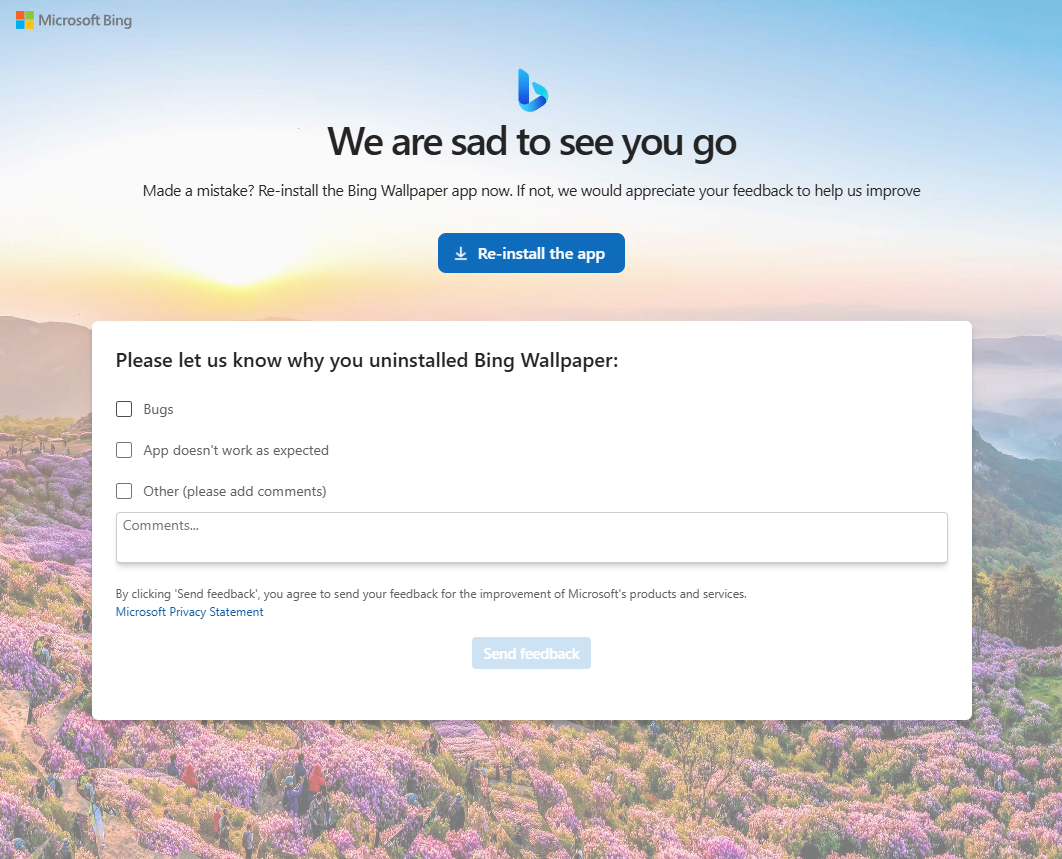
Bing Wallpaper app seems to be the culprit so far for me. Be prepared for one last “wait… don’t go…”
Windows Spotlight:
- Go to Settings > Personalization > Background
- Change the dropdown from “Windows Spotlight” to “Picture” or “Solid color”
- Select your preferred wallpaper
Bing Wallpaper app is installed:
- Open Settings > Apps > Installed apps
- Search for “Bing Wallpaper” or “Microsoft Bing”
- Click the three dots and select Uninstall
If it keeps reverting after uninstalling:
- Check Task Scheduler – press Win+R, type
taskschd.msc - Look in Task Scheduler Library for any Bing-related tasks
- Right-click and disable/delete them
Lock down your wallpaper via Registry (if needed):
1. Win+R, type regedit
2. Navigate to: HKEY_CURRENT_USER\Control Panel\Desktop
3. Find "Wallpaper" entry - note your current wallpaper path
4. Right-click "Wallpaper" > Permissions
5. Click Advanced > Disable inheritance > Convert to explicit permissions
6. Edit permissions to deny "Set Value" for your user account